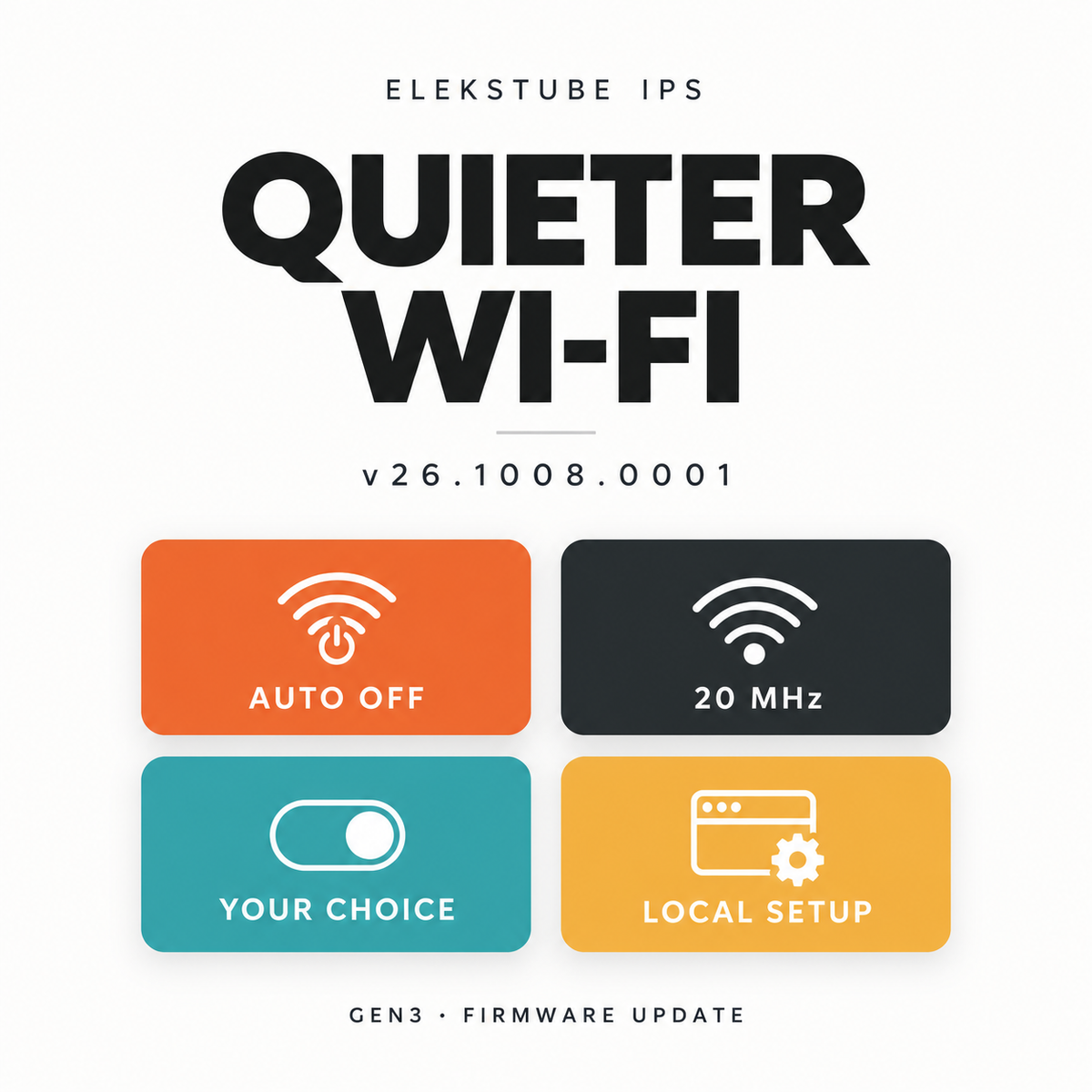
Firmware v26.1008.0001 changes how the setup hotspot works on EleksTube IPS Gen3 WebUI. When the clock connects to your Wi-Fi, the setup hotspot turns off by default. The update also adds a narrower hotspot channel and an option to keep the hotspot on.
Before you update: The update replaces custom clock faces and album photos on the clock with the built-in ones. Keep your original image files so you can upload them again afterwards. Your Wi-Fi and settings are kept.
Why the setup hotspot changes
A customer reported that the clock's setup hotspot kept transmitting after the clock had joined home Wi-Fi. Firmware v26.1008.0001 turns the hotspot off by default after Wi-Fi connects, reducing the time it is active on your home network.
What changes
-
Hotspot turns off after Wi-Fi connects. The clock's setup network, named
EM-IPS-xxxxxx, is off by default once the clock is connected to Wi-Fi. - Automatic recovery is designed in. If the clock cannot reach its saved Wi-Fi network for about a minute, the firmware is designed to bring the setup hotspot back.
- Narrower channel when active. The setup hotspot uses a 20 MHz channel instead of 40 MHz.
- You can keep it on. Turn on Keep hotspot always on in the Wi-Fi section of the clock's setup page to keep the hotspot active while the clock is connected.
Find the new setting
Open the Wi-Fi section of the clock's setup page to find Keep hotspot always on.


Open the setup page
When the setup hotspot is off, connect your phone or computer to the same Wi-Fi network as the clock. Then open http://ips.local, or enter the IP address shown on the clock's device info screen. Bluetooth setup in the EleksTube app remains available.
Get the update
On a computer, open the EleksTube firmware installer in Chrome or Edge and connect the clock with a USB-C cable. Follow the installer instructions for EleksTube IPS Gen3 WebUI firmware v26.1008.0001.