


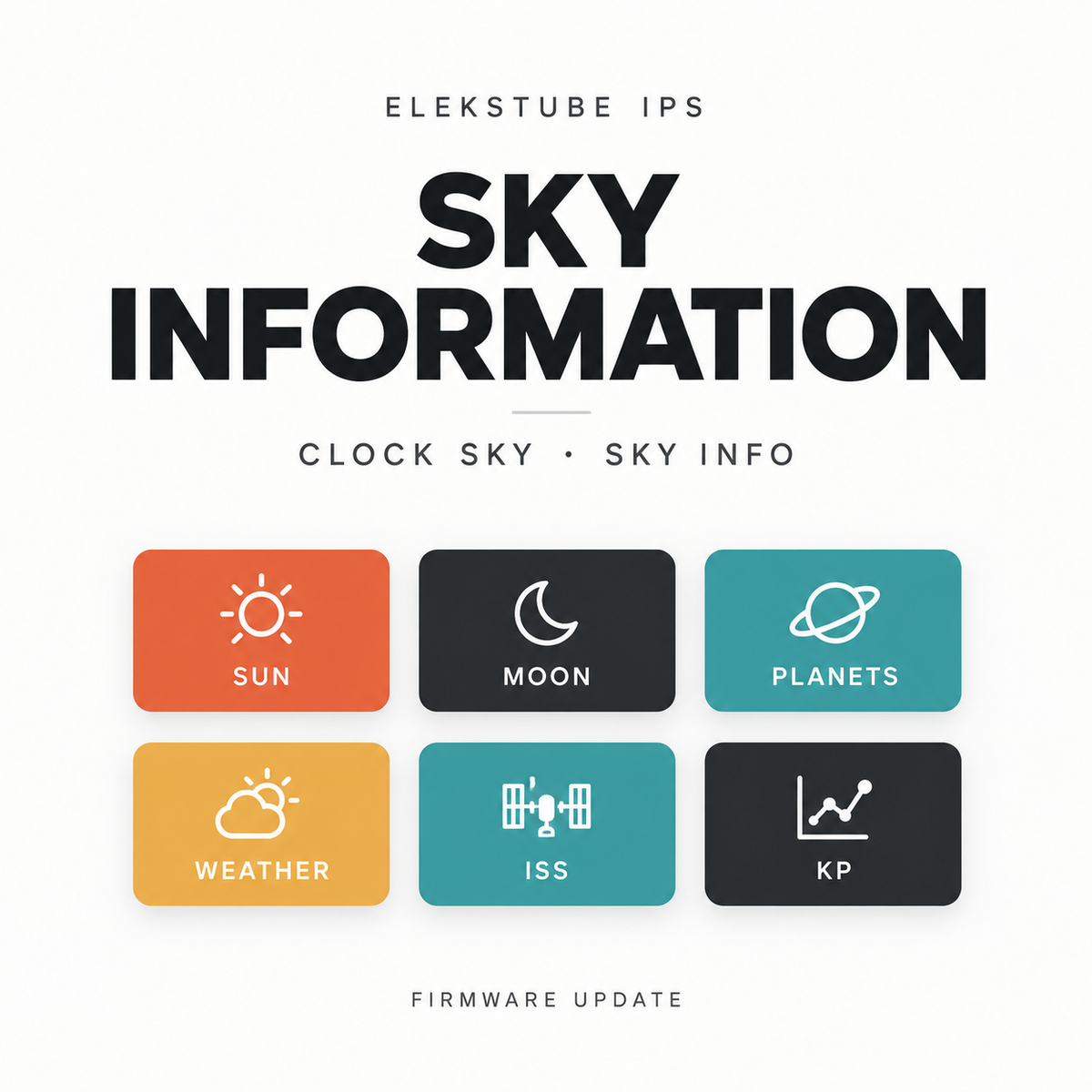
Your EleksTube IPS can now show more than the time. Firmware v26.0915.0008 introduces two related display modes: Clock Sky keeps the clock readable while giving one display position to a rotating sky card, and Sky Info turns the full six-screen array into a compact sky dashboard. The new cards use the same warm orange, deep red glow, and high-contrast visual language as the existing weather face.
Sky Information is designed for quick, useful glances. You can see a solar event, Moon phase, planet position, weather, International Space Station data, or the geomagnetic Kp index without leaving the desk. Each card is intentionally selective: it shows the information that is useful at a glance and leaves out dense secondary text.

Two modes for two kinds of attention
Clock Sky keeps time in front
In Clock Sky mode, the first five screens continue to show the time in HH:MM. The sixth screen is reserved for one Sky Information card at a time. This makes Clock Sky a good everyday mode: the time remains the primary purpose, while a small stream of context appears beside it.
The sixth screen can rotate through the cards you select. The available Clock Sky rotation intervals are 8, 12, 20, 30, and 60 seconds, with 12 seconds as the default. Choose Single card when you want a fixed display. The rotation interval applies to Clock Sky; Sky Info presents its six cards together instead of cycling one card through the array.

Sky Info uses all six screens
Sky Info is the information-first mode. All six cards appear together in a fixed screen order:
- Sun: daylight and solar-event information for the selected location.
- Moon: phase, illumination, and a simple visual phase indicator.
- Planets: a compact view of selected planet positions and direction.
- Weather: the existing weather presentation, kept visually unchanged.
- ISS: current orbital information and timing context for the International Space Station.
- Kp: the current geomagnetic activity index and its source-time context.
Card selection and ordering customize the sixth screen in Clock Sky. Sky Info always keeps its six-card layout. At least one card must remain selected for Clock Sky rotation. The Kp card is an activity indicator, not an aurora forecast. The ISS card is orbital information, not a promise that the station will be visible from your location. Cloud cover, light pollution, local horizon conditions, and an actual pass all affect what can be seen outdoors.
Designed to be readable in the tube
The new cards borrow the scale and visual rhythm of the weather display. Large orange numerals and labels carry the main value, while a deep red halo separates the information from the darker background. The graphics are larger where they help recognition: the Moon phase, solar arc, planet markers, ISS globe, and Kp chart occupy the central area. Supporting lines are short and spaced so the bottom of a card remains readable from normal desk distance.
The weather card keeps its established typography, digits, glow, and information order. Sky cards use the new display treatment around it, so the weather screen still feels familiar when it appears in either mode.

How to configure Sky Information
- Open the EleksTube Web UI and select Clock Sky or Sky Info.
- Open SETTINGS → SKY INFO SETTINGS. For Clock Sky, choose Rotate all cards, Rotate cards for a selected set, or Single card for a fixed card.
- Use the up and down controls to set the order. The order controls the Clock Sky rotation sequence.
- For Clock Sky, choose an 8, 12, 20, 30, or 60-second interval. Choose Single card and select the card if you prefer a fixed sixth screen.
- Save the settings, then allow the device to refresh its sky data before judging a card's local-time values.
For a new or recently updated device, start at the EleksTube firmware page. The related Web UI guide explains how to connect to the control page and save device settings.
Location and timezone behavior
Sky calculations depend on an observation location and local-time rules. In Automatic mode, the device can resolve the timezone when the device has network access, location data is available, and Sky mode is active. The result is cached so the device can keep using the last known match when a later refresh is unavailable.
The Sky timezone applies to sky-event times; it does not change the main clock timezone. You can reuse the weather location or enter a custom observation city and coordinates.
If you need a predictable fixed offset, choose Manual and set the UTC offset directly. A manual offset is fixed: it does not apply daylight-saving-time changes automatically. For locations that change between standard time and daylight time, update the manual offset yourself when the local rule changes.

Compatibility and practical expectations
Sky Information in firmware v26.0915.0008 is documented for EleksTube IPS Gen3 hardware. Check the activation page for the firmware package that matches your device before updating.
Sky cards depend on the data available at the time of refresh. A cached value, a missing network response, or an unavailable location can produce a status message instead of a fresh number. That is expected behavior and gives you a useful indication of data age. The display is intended as a glanceable desk feature; it does not replace a dedicated weather service, astronomy application, aurora forecast, or ISS visibility planner.
To begin, update a compatible Gen3 device from the firmware list, open the Web UI, and choose the mode that fits your desk: Clock Sky for time first, or Sky Info for a full six-card view.


